

Help Desk: How to load 3rd party Presets into u-he Synthesizers
! To load 3rd party presets and sounds into u-he synthesizers like ACE, DIVA, Zebra, and HIVE – and to access them directly through the synthesizer`s preset browser, you must place/copy the presets to a specific folder/path, depending on if you operating on Win or Mac OS.
Additionally, the synthesizer`s own manual will always contain detailed information about where to place & load the presets and other detailed and related info about the synthesizer.
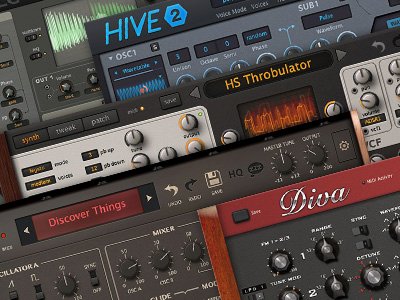
PRESET LOCATION PATH FOR ACE:
WinOS: /[your VST folder]/ACE/ACE.data/Presets/
MacOS: /Users/[your name]/Library/Audio/Presets/u-he/
PRESET LOCATION PATH FOR DIVA:
WinOS: /[your VST folder]/DIVA/DIVA.data/Presets/
MacOS: /Users/[your name]/Library/Audio/Presets/u-he/
PRESET LOCATION PATH FOR HIVE:
WinOS: /[your VST folder]/HIVE/HIVE.data/Presets/
MacOS: /Users/[your name]/Library/Audio/Presets/u-he/
PRESET LOCATION PATH FOR ZEBRA:
WinOS: /[your VST folder]/Zebra/Zebra.data/Presets/
MacOS: /Users/[your name]/Library/Audio/Presets/u-he/
In most cases our products (e.g. soundsets and presets packs) contain a detailed installation guide, if the presets based on the synthesizer, need to be placed in specific folders and of course, which version of the particular synthesizer is required to use the soundset files. Otherwise, the developer`s synthesizer manual always shows how its preset handling works and can be used.
If you have any questions left or if additional help and support are needed, feel free to contact us via our contact form or via our support forum on KVR.